The Home for Trusted Data,
Built for Humans and AI Agents
Prepare data, add business context, share it, and see how it's used.
Updates run automatically, so your team and AI agents always work with the latest data.
- Choose where data lives: PC or server
- Manage AI access per dataset
- Monitor who used your data, and when
Publish, add business context, ask from an AI agent, and see every access.
AI Can Analyze Your Data.
But Can You Really
Trust It?
The problem isn't the AI. It's the data you give it. Without trusted data and business context, AI misreads your data, repeats the same work, and wastes tokens.
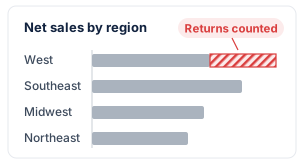
Wrong answers
AI misreads your data and your business rules.
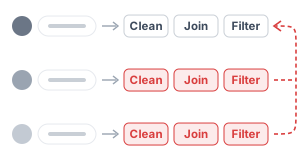
Repeated work
AI cleans and prepares the same data every time someone asks.
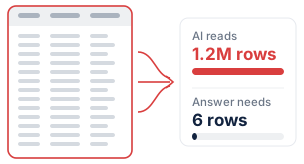
Wasted time and tokens
AI reads far more data than the question needs.
Better AI answers don't start with a better prompt. They start with better-prepared, better-understood data.
Give AI the data, and the context, to get it right
The West comes out on top
The AI adds up every order. The West's 13.7% return rate inflates its sales, so it looks like the leader.
The Southeast comes out on top
The AI follows the approved definition, which matches how the business counts net sales.
Net sales = sum ofsales
where
return_flag = "N"One example from the demo sales data. Business context helps AI answer more reliably; it doesn't guarantee a correct answer.
Five stages, one dataset you can trust
Monitor feeds back into Add Context: what people ask tells you what context to add next.
Prepare once, keep it up to date
Clean, join and calculate with recorded steps in Exploratory.
Then schedule a refresh: Exploratory re-queries the source and reruns every step, so the data is always ready.
- Databases
- Cloud apps
- R scripts generated with AI Data
- Local files
Check it before you rely on it
Every dataset has the same views: Summary for each column's distribution and missing values, Table to filter and aggregate, and Wrangling Steps to see exactly how each number was made.
You don't have to take anyone's word for it.
Teach AI what your data means
In the Metadata view, Generate / improve with AI drafts the business context from the data and from the recorded wrangling steps. You review it, fix what's off, and approve it.
See how the data is used
The Access Log shows who used the data, when, and how, and the exact query they ran.
The queries and their run times give you hints on how to improve the business context.
And if you see access you didn't expect, you can shut off a channel such as MCP or the CLI.
Share Data with AI Agents, with Confidence
Where your data lives, who can use which data, and how it was used. With the Data Catalog, you decide all of it and can check all of it.
Keep it on your PC
Publish to the Local Data Catalog and the data never goes to Exploratory Server.
Decide what AI can reach
Turn MCP and CLI access on or off for each dataset, at any time. In Exploratory Desktop, you can also turn MCP and CLI off for the whole app.
AI sees only what it should
On Server, an AI app signs in as the person, so it sees only the data that person may see. Everywhere, AI agents get only approved business context.
See every access
On the Data Catalog page, the dataset owner can see in the Access Log who used which data, when, through which channel, and the exact query. Each dataset has its own Access Log tab too.
Choose Where Each Dataset Lives
Data that shouldn't leave your company stays in the Local Data Catalog on your PC; data your team needs goes on the server. The main features work in both.
| Local Data Catalog | Server Data Catalog | |
|---|---|---|
| Where the data lives | Your PC | Exploratory Server |
| Who can use it | You, in Exploratory Desktop | People in your organization, with their own permissions |
| Sharing | None | Team sharing and a web page for each dataset |
| Scheduled refresh | Yes | Yes |
| Summary, Table, Wrangling Steps | Yes | Yes |
| Metadata (business context) | Yes | Yes |
| Access Log | Yes: Exploratory Desktop, MCP, CLI | Yes, for the dataset owner: web page, MCP, CLI, API, with IP address |
| MCP and CLI on or off per dataset | Yes | Yes |
| MCP and CLI on or off for the whole app | Yes, in System Settings | — |
| AI apps through MCP | Desktop MCP: Claude Code, Codex, Antigravity, Cursor | Server MCP: Claude, ChatGPT, Microsoft Copilot, Gemini, Claude Code. The AI signs in as the user and sees only what that user may see. |
| Best for | Personal work, and companies whose policy keeps data off external servers | Shared, governed data for teams and organizational AI |
Your data, your PC, your AI tools
Some companies don't allow data on external servers, or AI features inside other apps, but do allow a company-approved AI client such as Claude Code.
With the Local Data Catalog, you prepare data in Exploratory, keep it on your PC, and query it from the AI tool your company already approved. You decide which datasets that tool can reach, and the Access Log records each query.
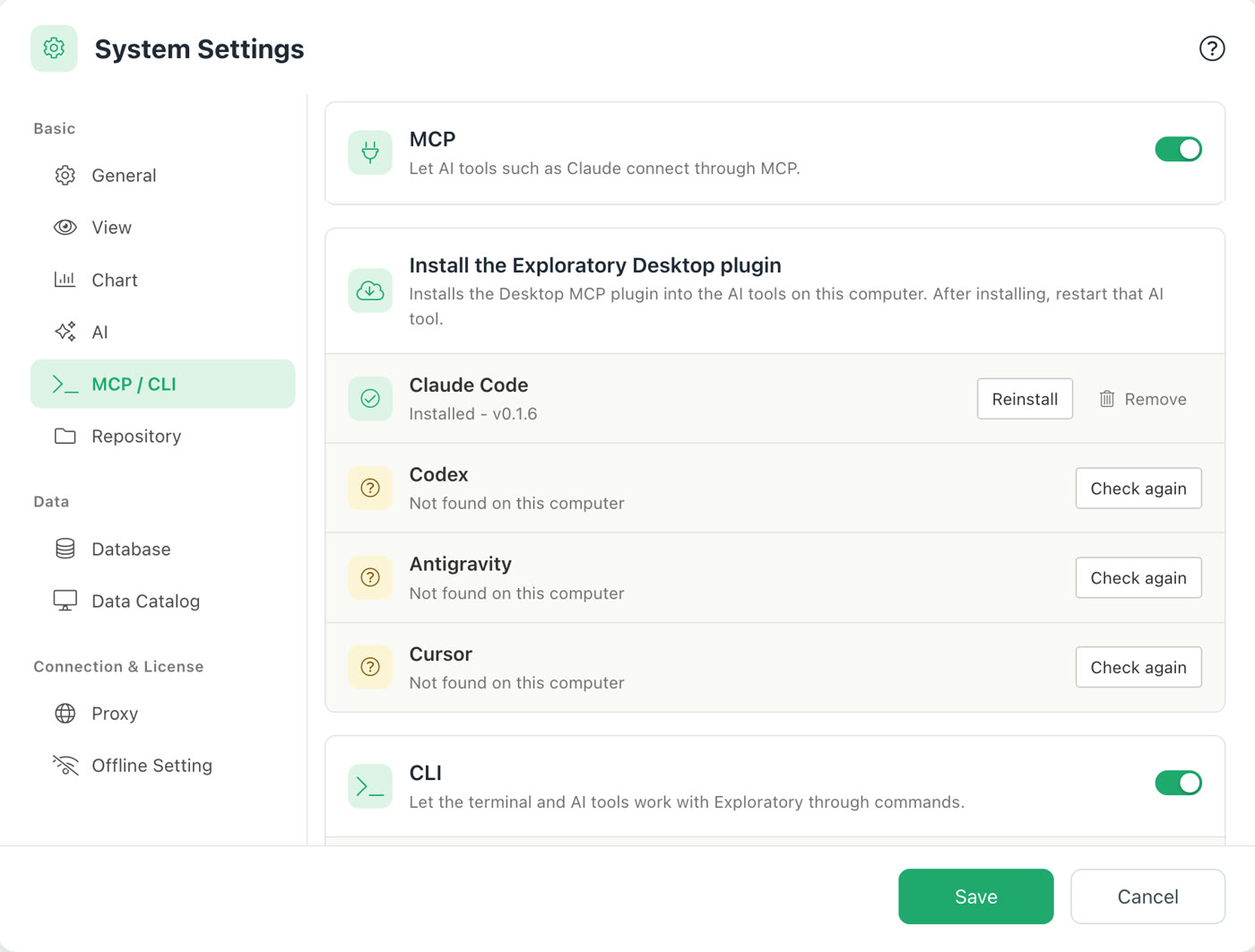
Turn on MCP and install the plugin for Claude Code, Codex, Antigravity or Cursor in one click. Turn the CLI on or off in the same place.
The same trusted data, for your team and your AI agents
You
From any project in Exploratory Desktop, pick a dataset from the Local or Server Data Catalog, build a query visually (select columns, filter, aggregate, join), and get the result.
Your teamServer
Import the data straight into Exploratory Desktop for analysis, or check and visualize it in a web browser and download the rows you need as a CSV to use in Excel and other tools.
AI agents
Find the dataset they need, read its approved business context, and run a query through MCP. They can reach only the data that the account they signed in with through OAuth has permission for.
Start with a dataset you already have
Prepare it
Import a source, clean it with recorded steps, and schedule a refresh.
Publish it
- Local: on your PC, for you and your AI tools.
- Server: for your team, with permissions.
Add context and use it
Generate and approve the business context, then query the data yourself or connect your AI app through MCP.
Don't have an account? Start a 30-day free trial
Watch: What Is a Data Catalog? (5 min)
Frequently Asked Questions
What is Exploratory Data Catalog?
One place in Exploratory to prepare, verify, and share trusted data that people and AI agents can understand and query efficiently. Every dataset has the same views: Summary, Table, Wrangling Steps, Metadata and Access Log. It runs on your PC (Local) or on Exploratory Server for your team.
Do I need an AI agent to benefit from it?
No. Scheduled refresh keeps your data up to date, and Summary, Table and Wrangling Steps let you verify it. In Exploratory Desktop, you can build a query in the UI and import just the data you need into any project. AI agents are one more way to use it.
Does my data have to go to a server?
No. Publish to the Local Data Catalog and the data stays on your PC; it never goes to Exploratory Server.
Does Local mean no data reaches an AI provider?
Not by itself. The dataset stays on your PC, but the query results your AI client receives go to that AI provider, under your company's agreement with them.
You decide which datasets your AI client can reach, and the Access Log records each query.
Can I stop AI agents or the CLI from using a dataset?
Yes. Turn MCP and CLI access on or off for each dataset, at any time, on Local and on Server. In Exploratory Desktop, you can also turn MCP and CLI off for the whole app in System Settings.
How do I see who is using my data?
Open the Access Log on the Data Catalog page, or the Access Log tab of a dataset. It shows who used which data, when, through which channel, and the exact query. Only the dataset's owner sees it.
Which AI apps can connect, and how?
- Desktop MCP (Local): Claude Code, Codex, Antigravity, Cursor and other tools you install on your computer. Turn on MCP in Exploratory's System Settings and install the plugin in one click.
- Server MCP: Claude, Claude Code, ChatGPT, Microsoft Copilot, Gemini, Grok Bot and more. The AI app signs in as you and sees only the data you may see.
How does business context improve AI answers?
Business context tells the AI what the data means: what one row is, what each column means, how metrics are defined, and how to aggregate.
It helps AI answer more reliably; it doesn't guarantee a correct answer. AI agents get only the context you approved.
How do permissions and the Access Log work?
On Server, people use each dataset with their own permissions, and an AI app signs in as the person, so it sees only what that person may see. On both Local and Server, you can turn MCP and CLI access on or off per dataset.
The Access Log records each access. On Server: the web page, MCP, the CLI and the API, with the IP address. On Local: Exploratory Desktop, MCP and the CLI. Only the dataset's owner sees it.
Can I refresh data automatically?
Yes. Schedule a refresh: Exploratory re-queries the source and reruns every recorded step, so the dataset in the Data Catalog stays up to date, on Local and on Server.
The Home for Trusted Data,
Built for Humans and
AI Agents
Prepare your data once. Give people and AI agents the context and access they need.