Chart Gallery
With Exploratory, you can use various types of charts and their rich functions to visualize hidden patterns and trends in the data and understand them intuitively.
We'll show you how to build a chart you liked, with your own data.
Chart Type
You can choose from various types of charts to visualize your data effectively.
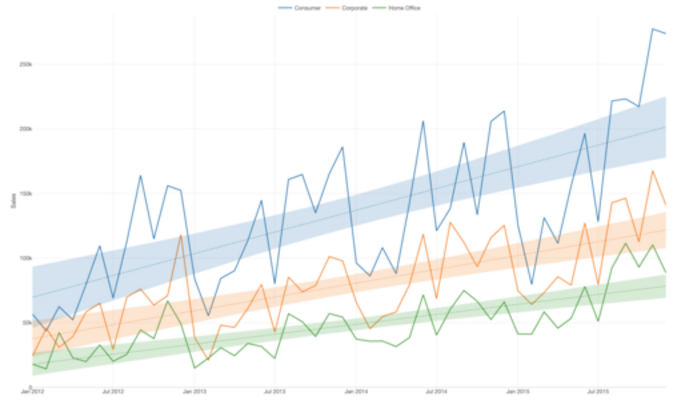
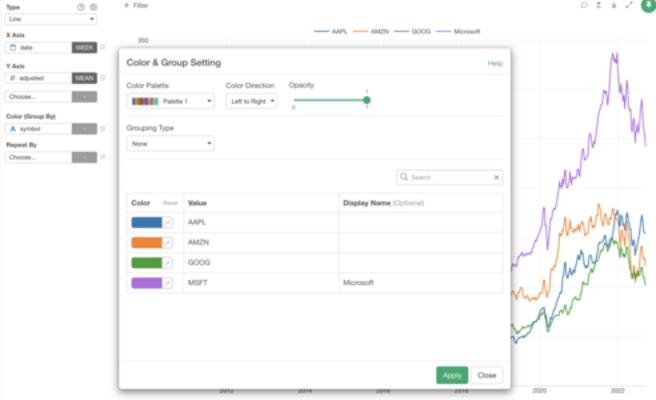
Line charts are great especially for visualizing time series data. Here's how you can quickly create them with various options!
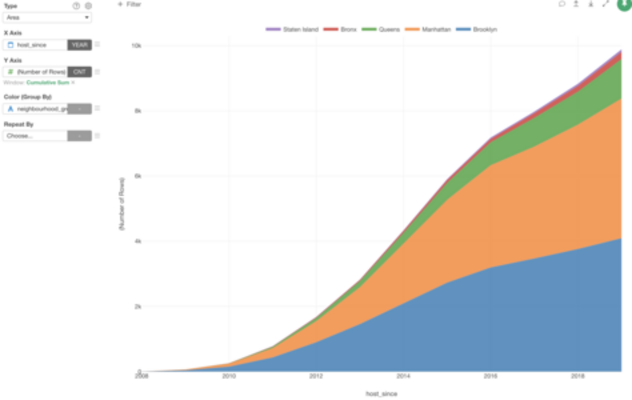

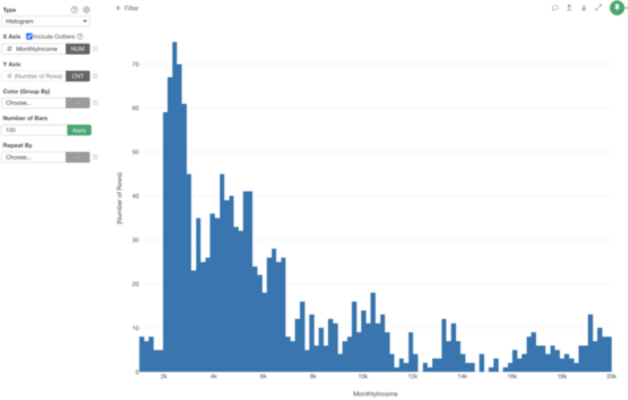
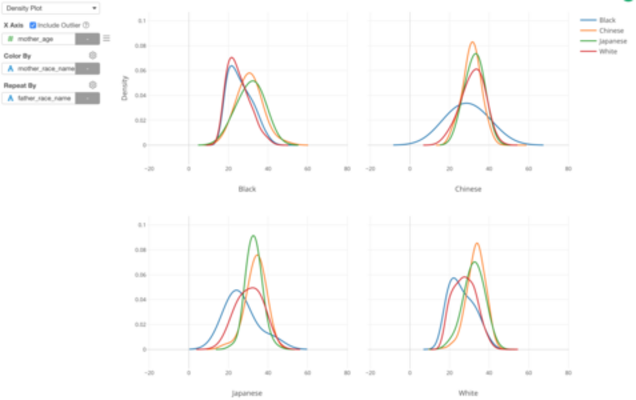
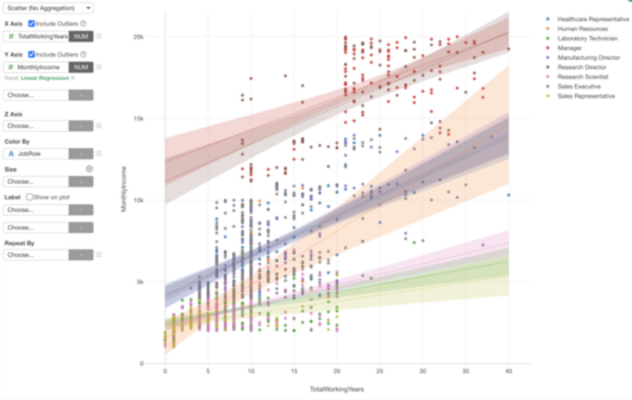
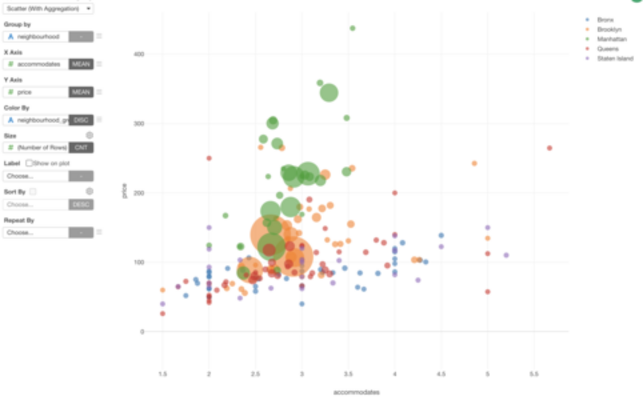
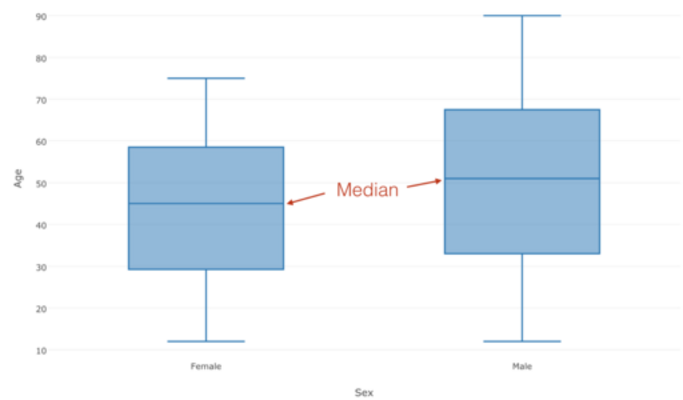
Boxplot chart is very helpful when it comes to understanding the distribution of your data or even better, compare how the distribution differs among various groups.

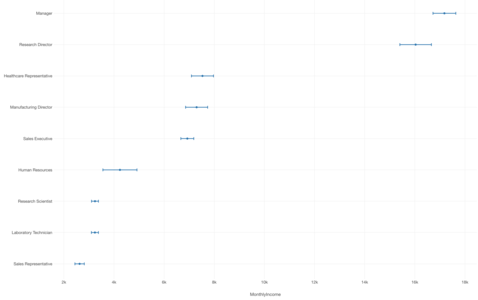
You can use Error Bar chart to show confidence intervals for Mean (Average) values and for Ratio values.

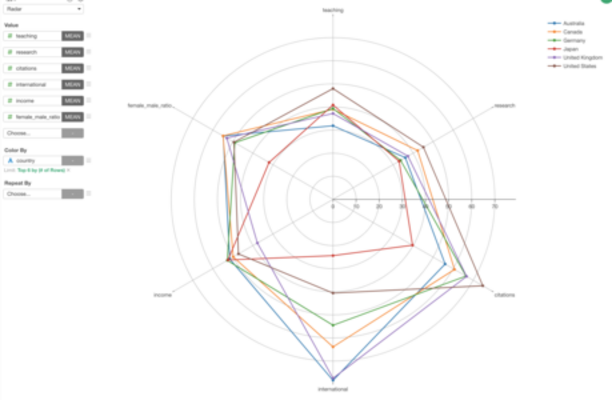

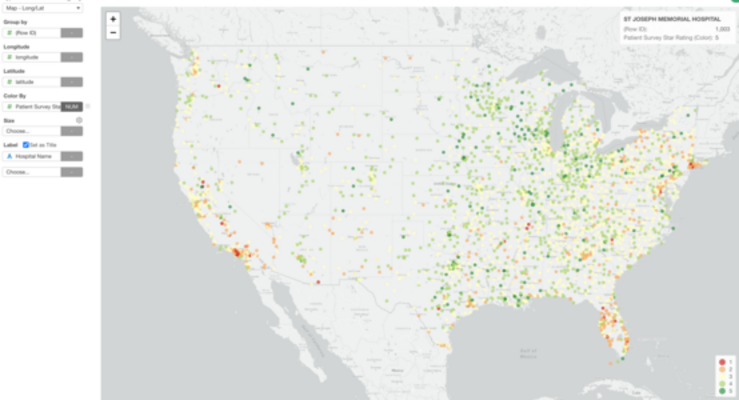
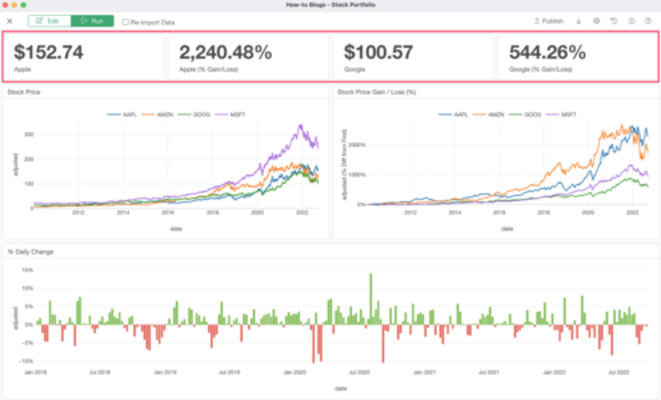
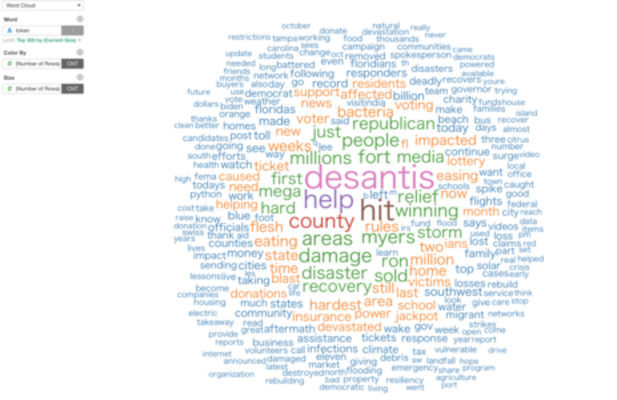
Chart Features
There are various Chart features you can use to enrich your data visualization.
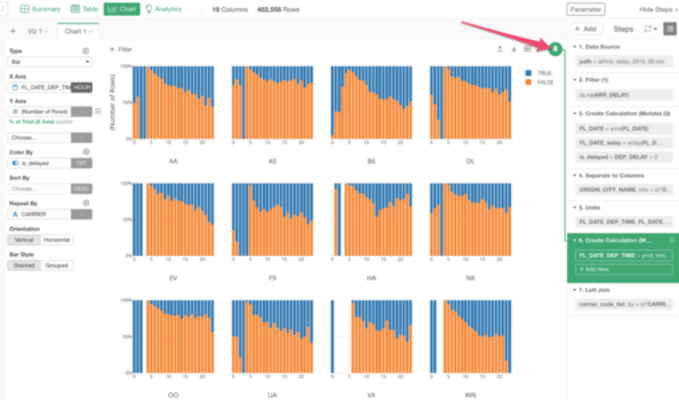
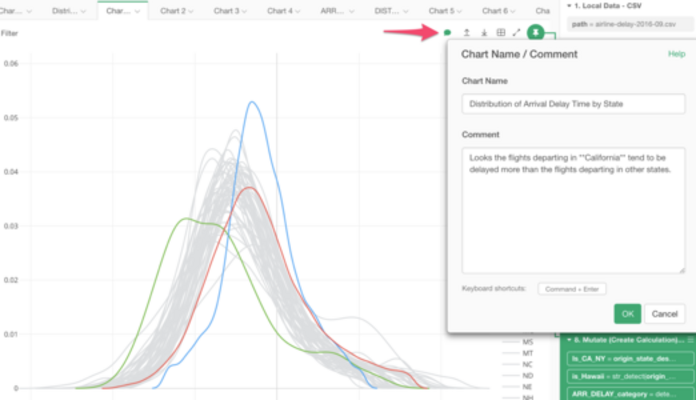
The most important feature of Chart is 'Pin'. You can pin the chart to a particular step so that it will always source the chart data from the pinned step even when new Data Wrangling steps are added.
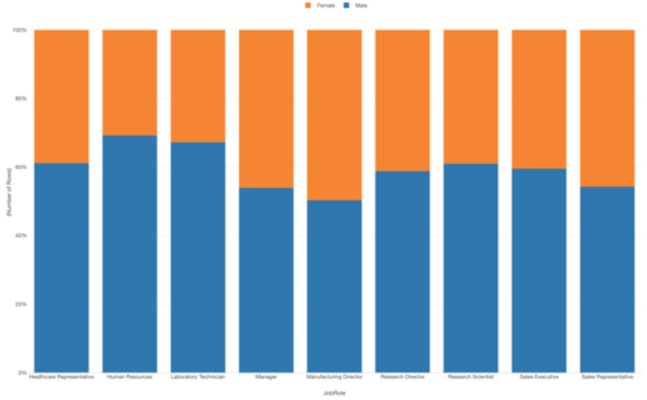
You can learn how you can use Window Calculation feature to visualize '% of Total' with Bar chart in this Note.
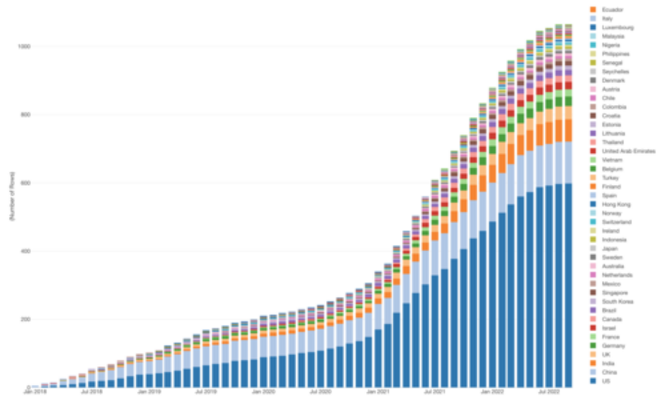
You can learn how to create a chart to show cumulative sum (running total).
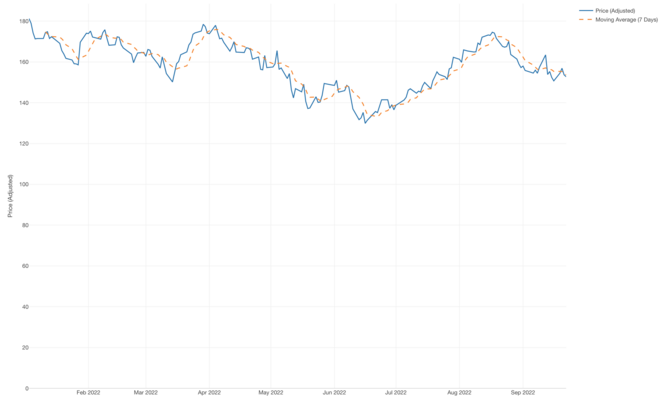
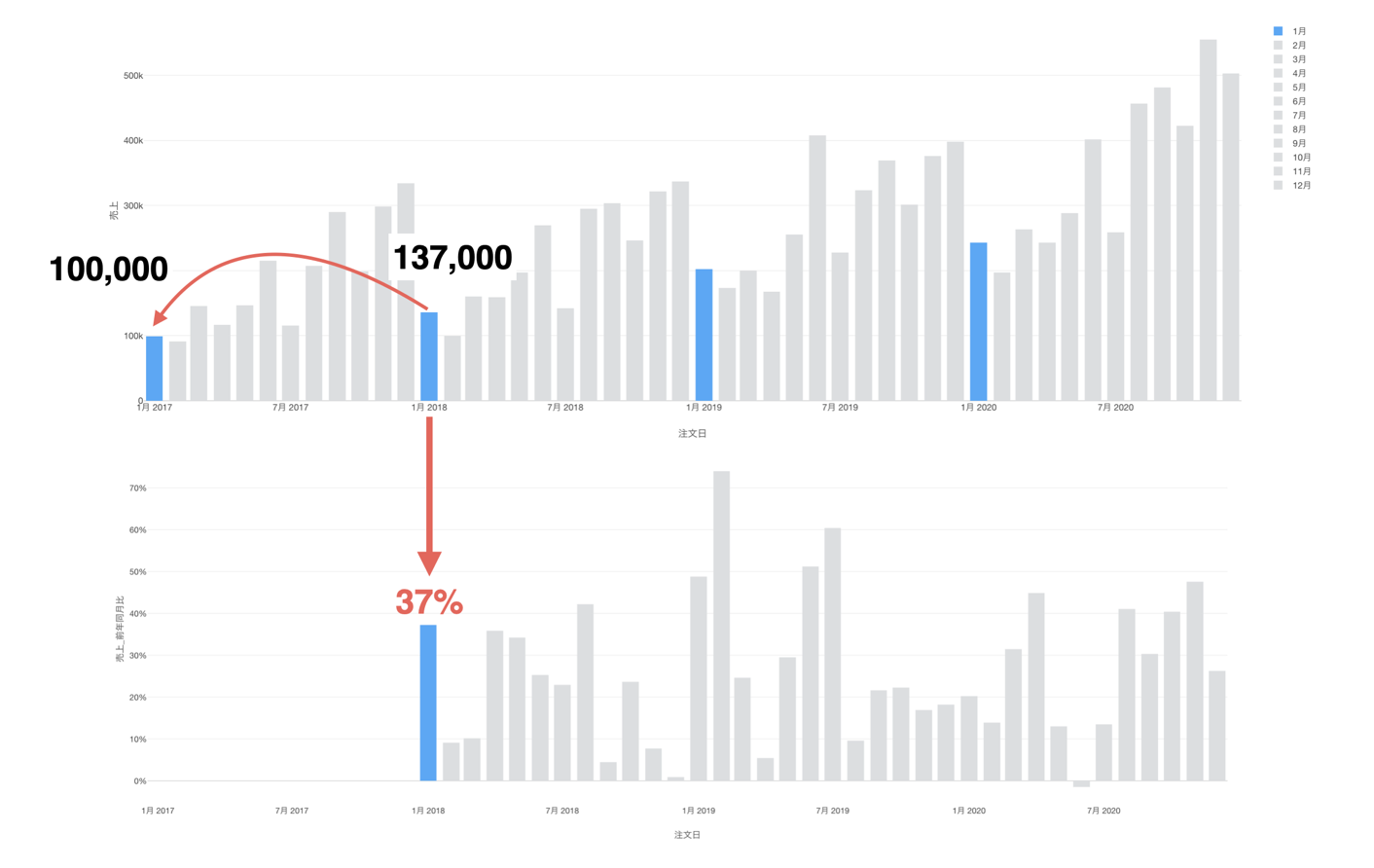
Here's how to create a chart to show the growth compared to the same month in the last year or quarter.
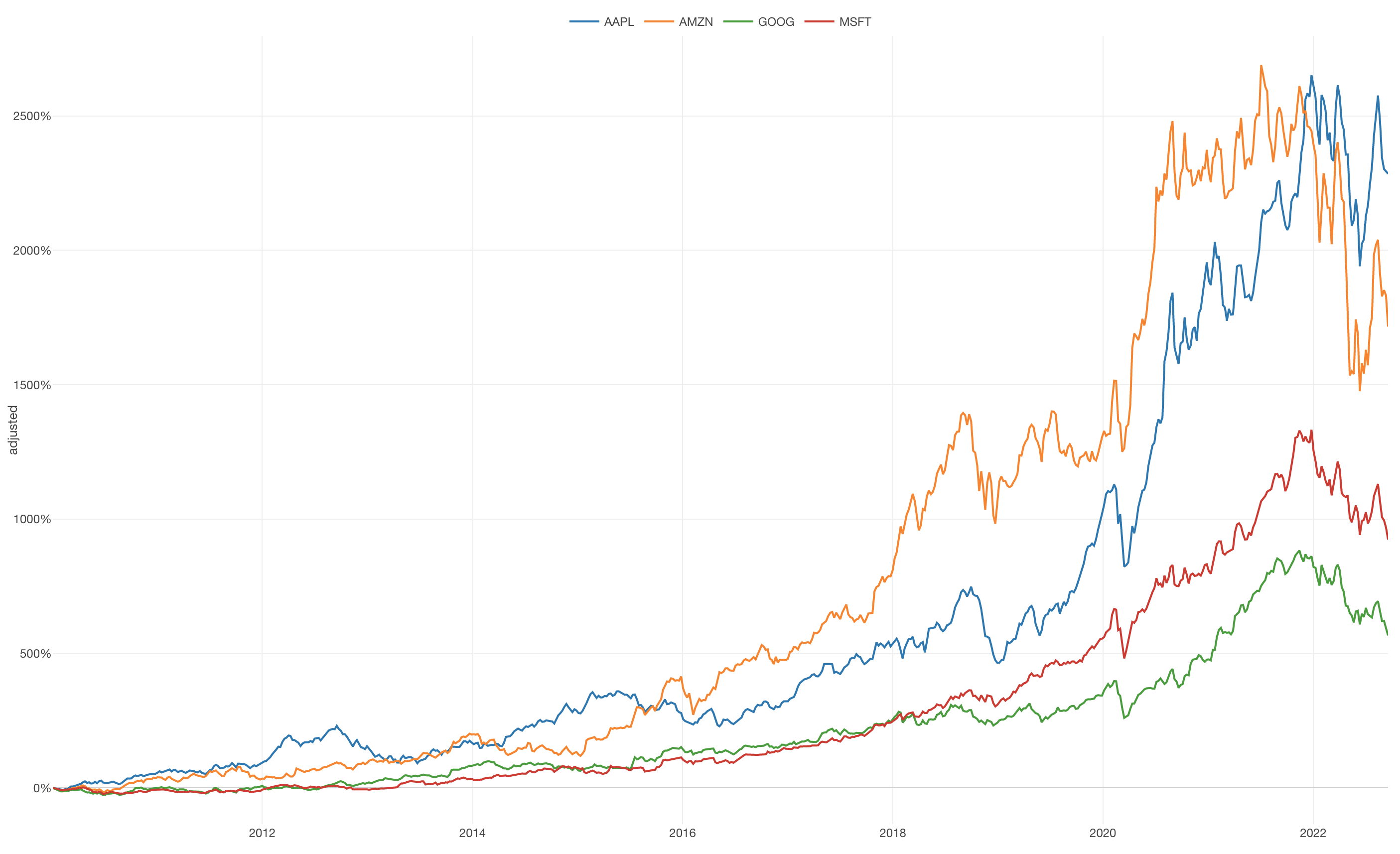
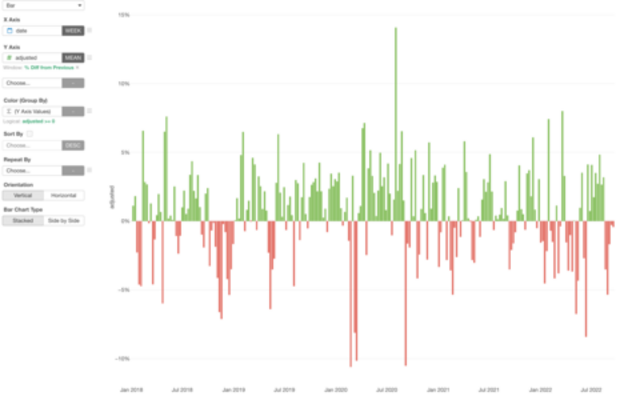
Here's how you can create a chart to show the % of Difference from First Value with 'Window Calculation' feature.
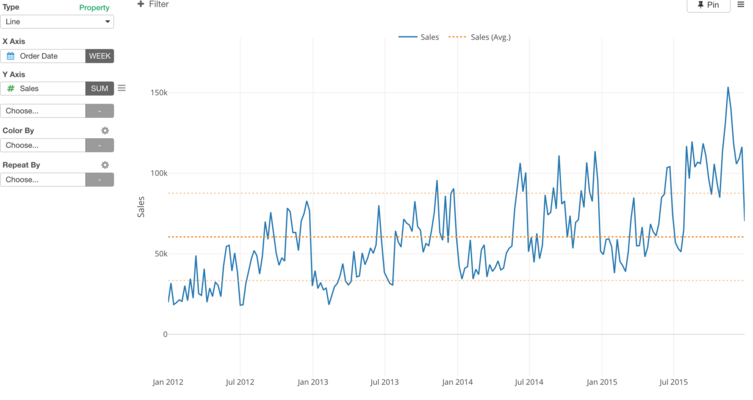
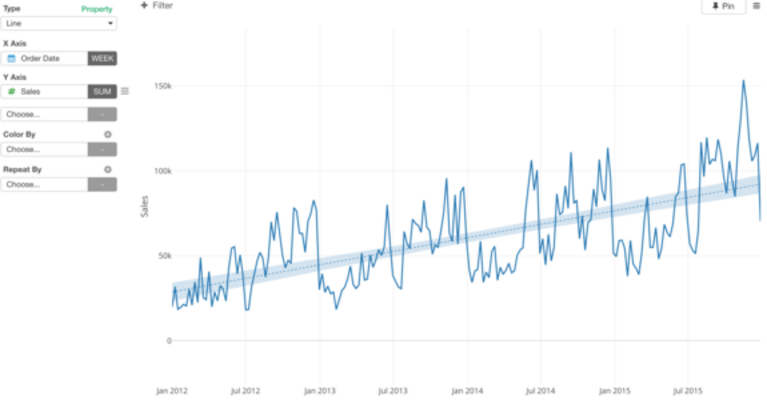
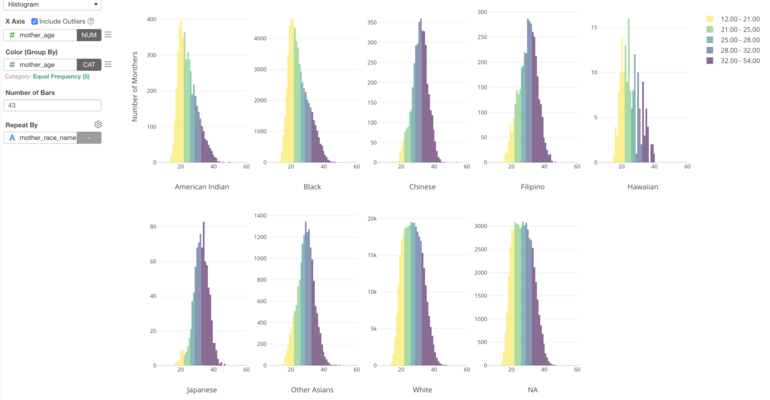
Here's how you can categorize numerical values by dividing into multiple groups.
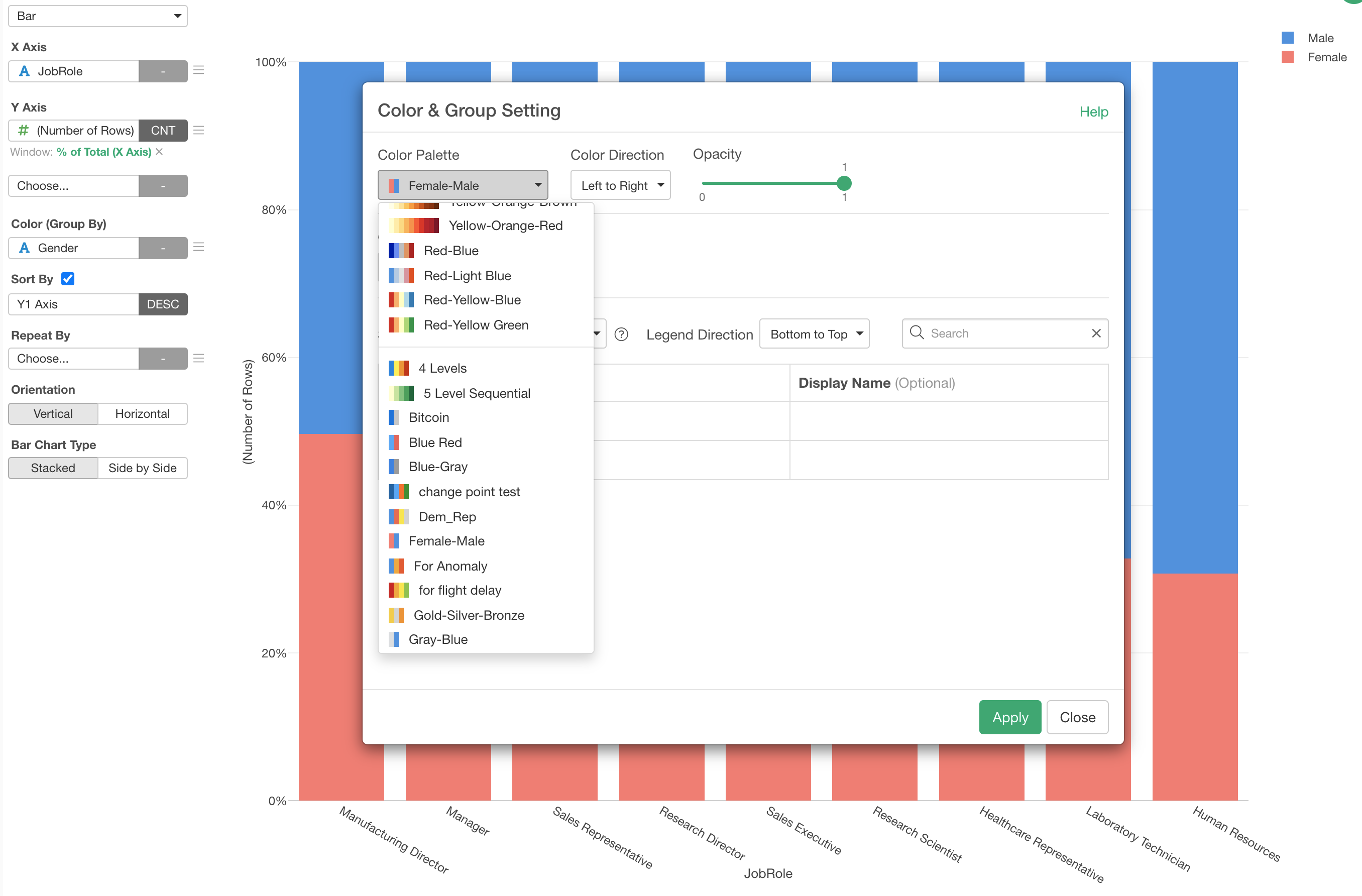

You can convert numeric values such as Age, Income, Sales, etc. into a set of groups with an 'Equal Step' option, which will create a group for an every given number such as 'every 10'.
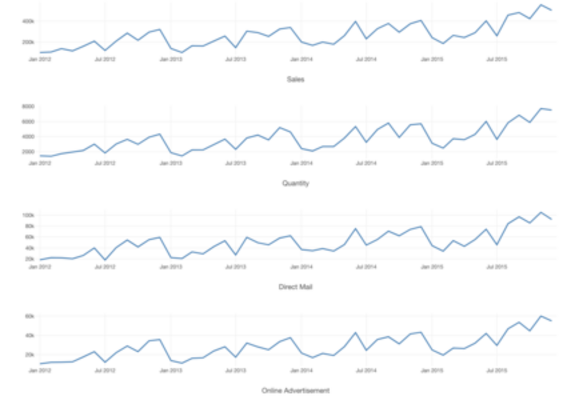
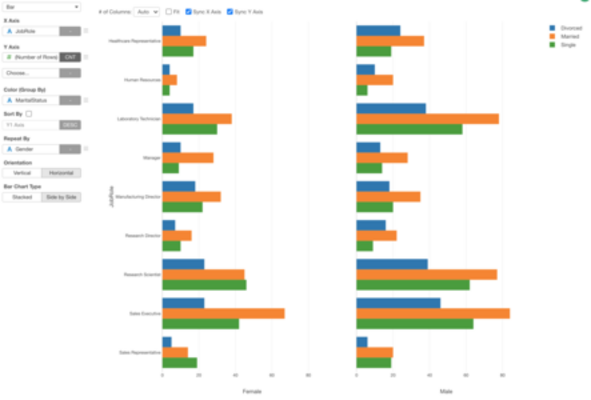
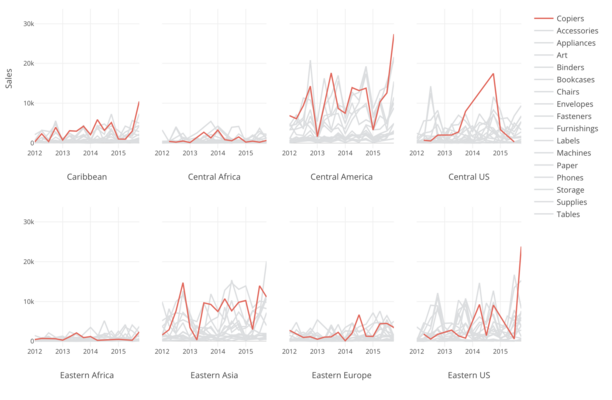
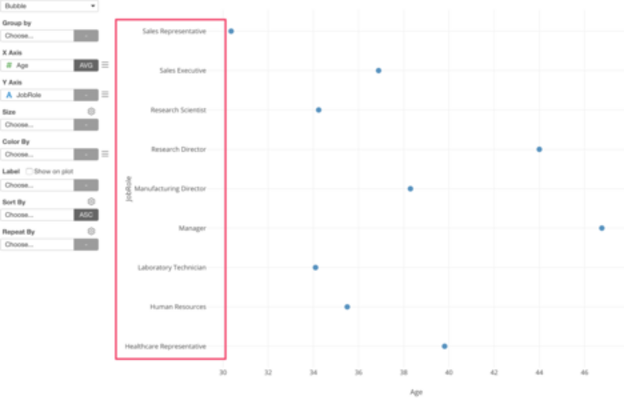
You can separate a chart to multiple charts and show each measure in its own chart with Repeat By.
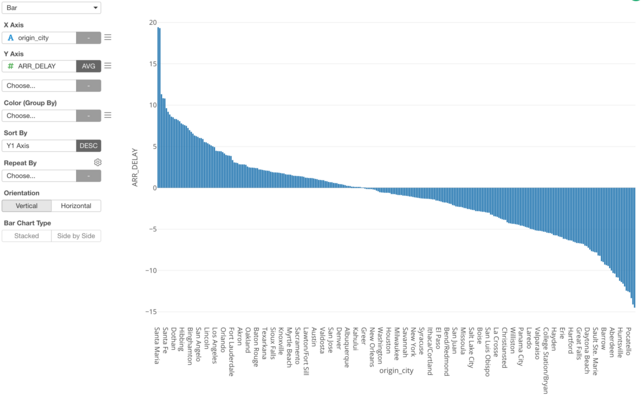
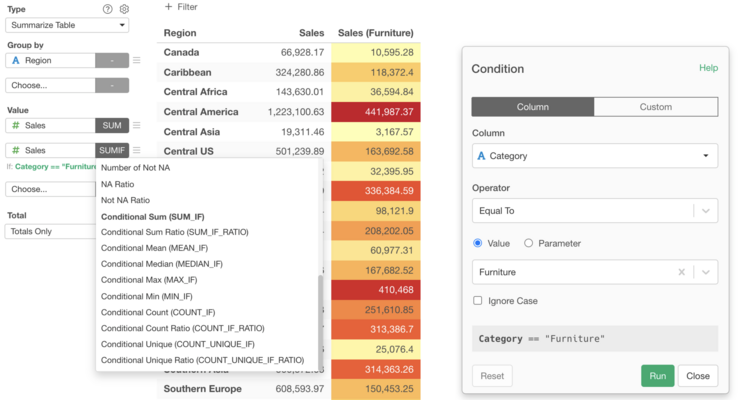
You can summarize data conditionally, which means you can create your own conditions for the data to be summarized.
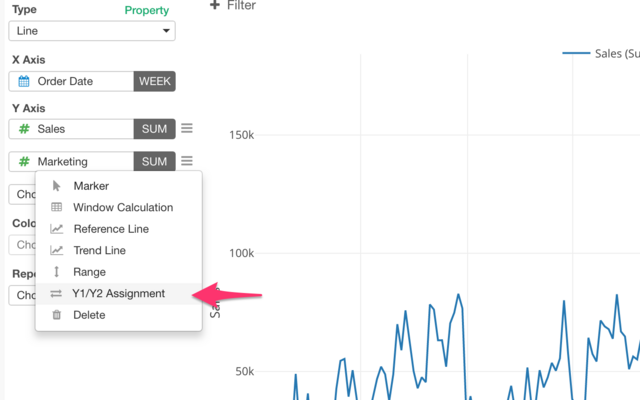
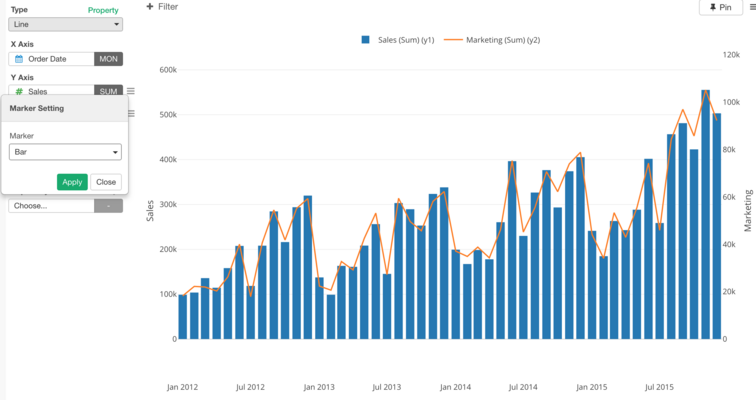
You can use different markers for different measures in the same chart.
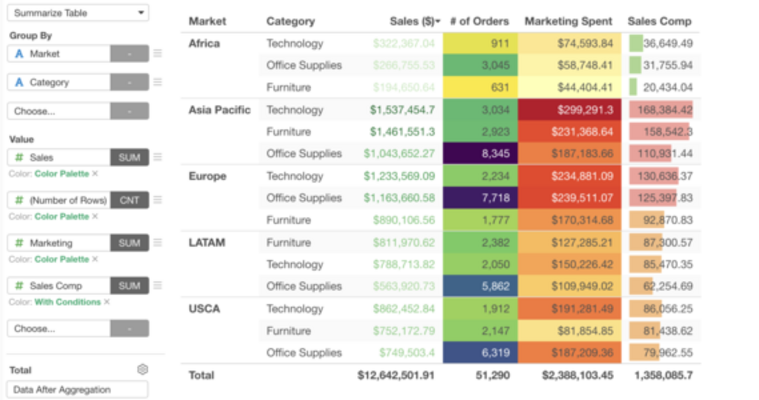
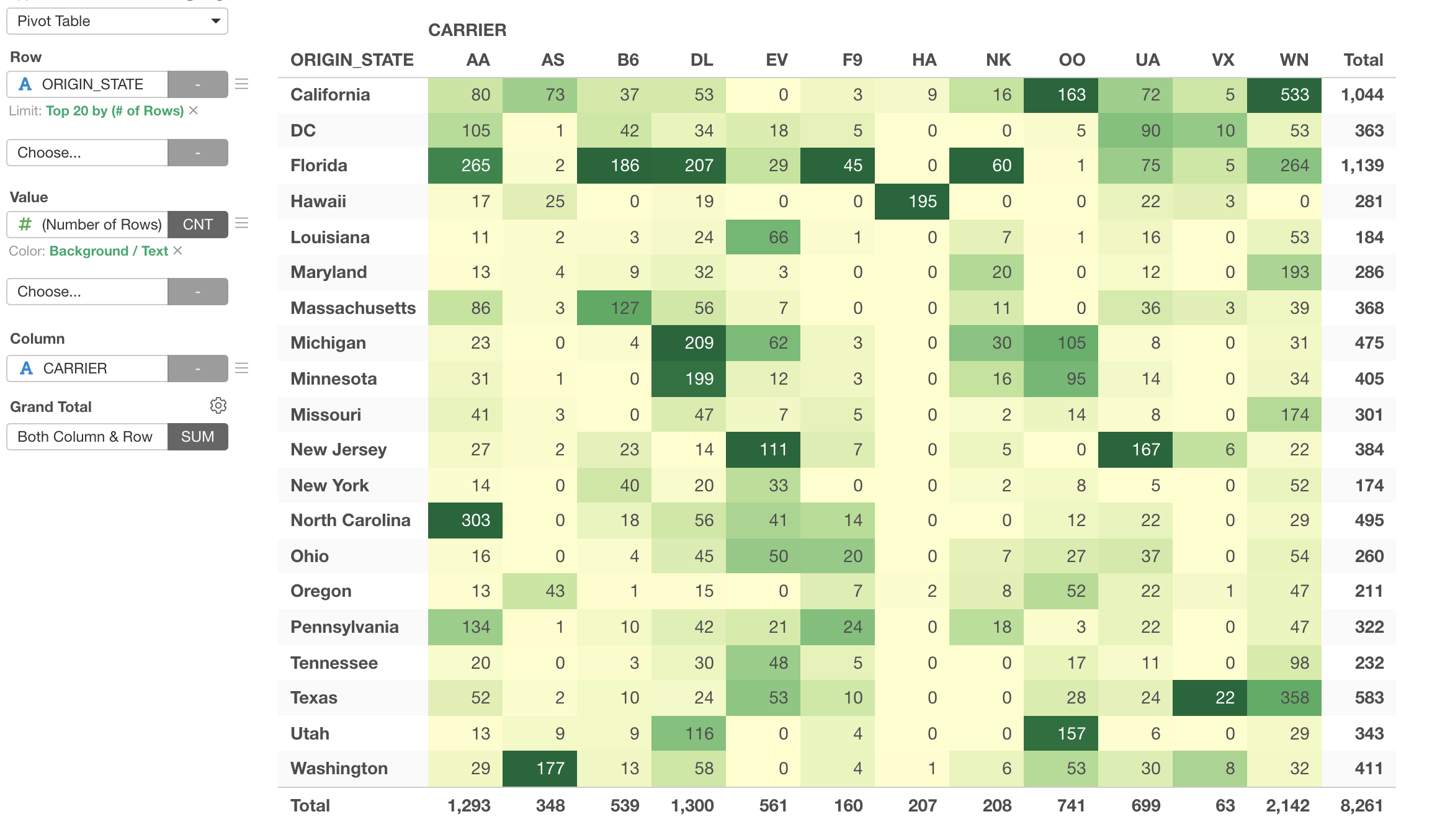
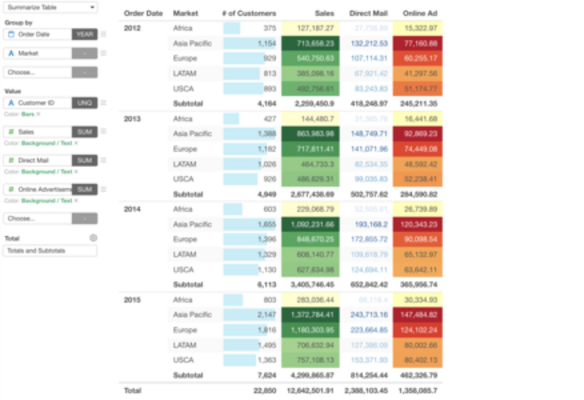
You can add visual cues by using color and bar for Pivot / Summarize Tables.

You can learn on how you can install your GeoJSON files and start visualizing data with your own Map.
Data Visualization Workshop
You can learn how to choose the right charts based on the type of data, how to visualize various types of data effectively, how to prepare data to visualize, etc. and share the tutorials and data with you so that you can practice by yourself.
In this seminar, you can learn how you can choose the right chart types and demonstrate how to visualize summarized (aggregated) data effectively.
In this seminar, you can learn how you can visualize Time Series data effectively with Exploratory.
In this seminar, you can learn how to visualize variance in data and correlation between variables with various chart types in Exploratory.

In this seminar, we introduce concepts like 'Uncertainty' and 'Confidence Interval' and show you how you can visualize them effectively with Error Bar in Exploratory.
Once you get your data, more often than not, you need to clean and transform the data before even visualizing it to make any sense. We call this task Data Wrangling. We'll introduce several techniques on how to prepare data for effective visualizations.
We'll show you how to build a chart you liked, with your own data.